
Compare / GA4
How to see GA4 traffic by day of week and hour
GA4 has no ready-made day-by-hour report, but you can build one in Explore in about five minutes. Here's how, the two traps that make it lie, and the quicker routes.
Build it in GA4 Explore
- Start a free-form exploration. Open Explore in the left menu and choose Free form.
- Add the dimensions. Click + next to Dimensions and add Day of week and Hour.
- Add a metric. Click + next to Metrics and add Sessions, or the key event you care about.
- Lay it out. Drag Day of week to Rows and Hour to Columns. Raise Show column groups so all 24 hours appear; the default shows only a few.
- Turn on the heat map. Set Cell type to Heat map and pick a date range of at least four weeks.
The darkest cells are your busiest hours. Swap the metric for conversions or revenue and the busy hours often move: people browse in the evening and buy at lunchtime.
Two traps that make it lie
The hours are in the property's time zone
Hour uses the reporting time zone set on the property (Admin, Property details), not yours and not the visitor's. A UK site whose property was set up in US Pacific time shows its 9am peak at 1am. Check the setting before you read anything into the peaks.
The days may not be in order
Day of week is a number from 0 (Sunday) to 6 (Saturday), and the table sorts rows by the metric unless you change it. Sort by the dimension, or you'll read your busiest day as Monday because it is on the top row.
Also worth knowing
- Small sites: 168 cells split your traffic thinly. Use a longer range, and expect GA4 to withhold or group rows when counts are low.
- History: explorations only reach back as far as your data retention setting (two or fourteen months on a standard property).
The options compared
| Option | Price | Set-up | Good at | Watch out for |
|---|---|---|---|---|
| GA4 Explore | Free | About 5 minutes, each time | Any metric, segment or filter GA4 has | Retention limit, row order, sharing is clumsy |
| Data Studio | Free | A report to build once | A heatmap that stays in a dashboard | Pivot-table set-up and GA4 API quotas |
| Timing Grid Ours | Free | Connect Google, pick a property | The grid in one step, up to 12 months | GA4 only, a fixed set of metrics |
Timing Grid is ours, marked Ours; the GA4 steps above work without it. Written 22 October 2026.
In Data Studio
Add a pivot table to a report on your GA4 data, put Day of week in the row dimension and Hour in the column dimension, add Sessions, and switch the table's style to a heatmap. It takes longer to set up than Explore, but it stays put and anyone with the report link can see it.
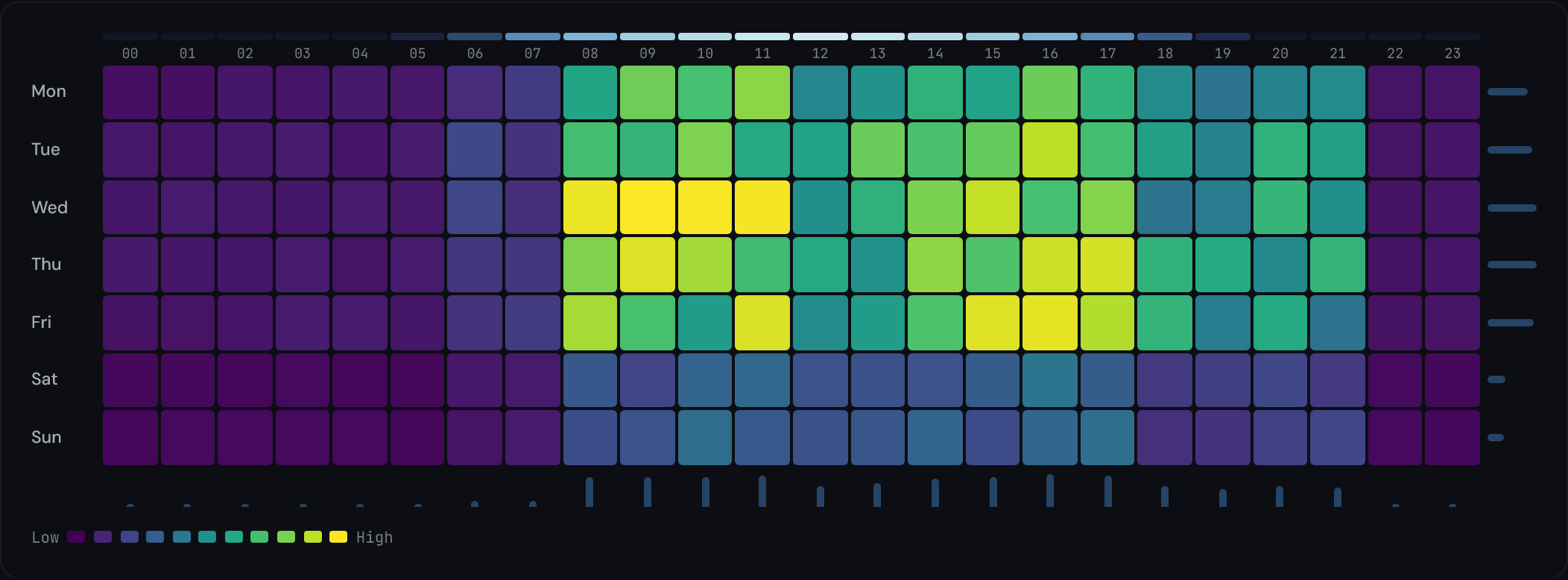
Or see it in one step: Timing Grid
Timing Grid draws the same 7-day by 24-hour grid from your GA4 property. Connect Google (read-only access), pick a property and a metric (sessions, users, page views, conversions or revenue) and a range of up to 12 months. Days run Monday to Sunday, hours follow the property's reporting time zone, and colour is scaled by percentile so one unusual hour doesn't wash out the rest. Your GA4 data goes straight from Google to your browser; it isn't sent to us.
Where Explore is better: it can segment and filter in ways Timing Grid doesn't, such as one campaign or one country. Use Timing Grid for the quick read and Explore when you need to cut it.
Frequently asked questions
Does GA4 have an hourly report?
Not as a ready-made report. You can add Hour as a secondary dimension to a standard report table, or build a day-by-hour table in Explore with the heat map cell type.
What time zone does GA4 use for the Hour dimension?
The reporting time zone set on the GA4 property, not the visitor's or yours. Check it under Admin, Property details before reading peaks, especially for international traffic.
How much data do I need for a reliable day and hour pattern?
At least four weeks, so each weekday appears four times. Low-traffic sites need longer, because hourly cells get small quickly and GA4 may group or withhold rows.
When is the best time to run ads or send email?
When your own audience is active, which a day-by-hour heatmap of your traffic or conversions shows. Industry averages are a poor guide: a B2B site and a content site have opposite patterns.